

If you work with Microsoft 365, you can now connect your mailbox directly to 1Tool. Quotes, invoices, ticket replies and all other emails you send from 1Tool then go out from your own Outlook address – just as if you had written them in Outlook.
The connection uses the official Microsoft sign-in. You only enter your password at Microsoft; 1Tool never sees it. An SMTP account, an app password or an exception to multi-factor authentication is no longer needed.
What you get
- The sender is the person, not the system. The customer replies directly to the right address, and the reply ends up where it belongs.
- No passwords in 1Tool. Sign-in stays with Microsoft. If someone leaves the company, your IT blocks the account at Microsoft – and that also ends the connection to 1Tool.
- Calendar too, if you like. In the same area, you can also sync your Microsoft calendar with 1Tool.
You can find more about how 1Tool and Outlook work together on our Outlook integration page.
Step for employees: connect your own mailbox
Every employee connects their own mailbox. It takes less than a minute:
- In 1Tool, open your personal Settings (Settings → General).
- Select the Email account tab.
- Click Connect Microsoft account.
- Sign in at Microsoft with your company address and confirm.
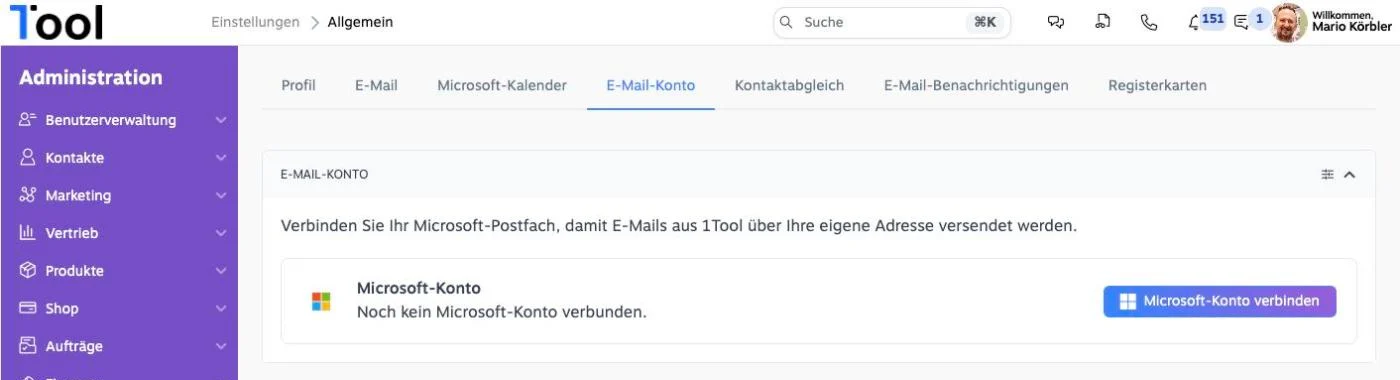
The page will then show "Connected – emails are sent via this mailbox". If you use several Microsoft accounts, you can add another one with the same button.
When Microsoft reports "Need admin approval"
In many companies, employees are not allowed to grant applications access to their mailbox themselves. This is a sensible security setting in Microsoft 365. In that case, instead of the confirmation, this message appears when connecting:
Need admin approval 1Tool needs permission to access resources in your organisation that only an admin can grant.
This is not an error in 1Tool. It simply means: your Microsoft administrator has to approve 1Tool once for your company. After that, all employees can connect their mailbox without further prompts. Ideally, forward this article straight to your IT.
Instructions for the administrator: approve 1Tool once
You need an account with the Global Administrator, Application Administrator or Cloud Application Administrator role in Microsoft 365. The process takes about two minutes.
1. Open the consent link
Open this link in your browser:
https://login.microsoftonline.com/common/adminconsent?client_id=465bf865-28fd-49ff-b301-3d448d712b3b
The link takes you directly to Microsoft's sign-in page. It is the same for all 1Tool customers; Microsoft recognises your company by the account you sign in with.
2. Sign in with the administrator account
Select your administrator account or sign in with it. Make sure you don't accidentally use a normal user account – otherwise the message above will appear again.
3. Review and accept the permissions
Microsoft now shows the page "Permissions requested – Review for your organisation" with the app 1Tool. It lists:
- Read and write users' mail and send mail on their behalf
- Read and write mailbox settings
- Read and write users' calendars
- Send mail using SMTP AUTH
- Maintain access, sign in and read user profile
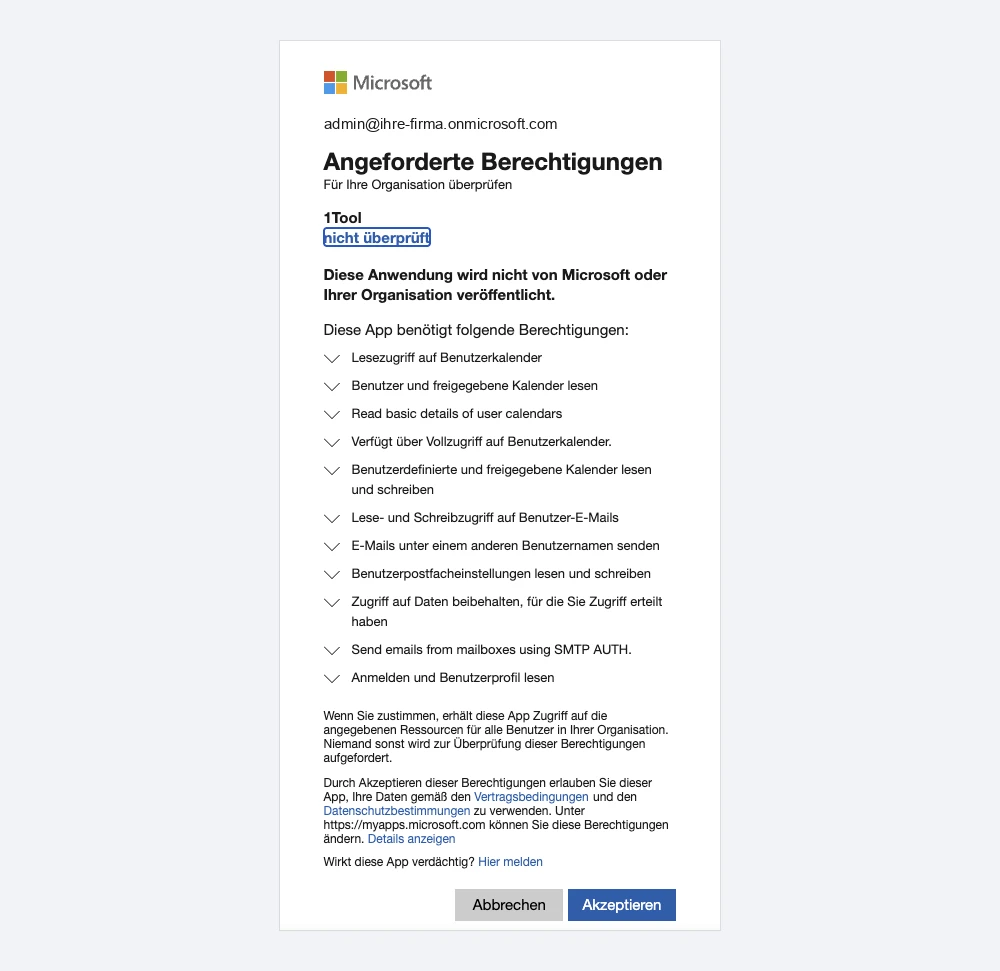
Click Accept. Microsoft then redirects you to 1Tool – and the approval is done.
The note "unverified" next to the name 1Tool only means that the app is not registered in Microsoft's own publisher verification programme. It says nothing about the security of the connection.
4. Inform your employees
Let your employees know that they can now connect their mailbox (see above). Anyone who tried before simply clicks Connect Microsoft account again.
What the approval allows – and what it doesn't
The question every IT department rightly asks: can 1Tool use this to look into every mailbox in the company? No.
The permissions are so-called delegated permissions. With them, 1Tool always acts only on behalf of a person who has signed in themselves and connected their mailbox – and only with their own mailbox. The mailboxes of employees who have not connected anything remain out of reach for 1Tool. Your consent as administrator merely spares employees the approval prompt.
You stay in control at all times:
- Disconnect an individual connection: each employee can remove their mailbox again in 1Tool under Email account with Disconnect.
- Revoke approval for the whole company: in the Microsoft Entra admin center, under Enterprise applications → 1Tool, you can view the permissions and disable or delete the app.
- Block an account: if a user account is blocked at Microsoft, its connection to 1Tool ends as well.
Questions?
If anything looks different during approval from what is described here, please contact our support. We will be glad to go through the steps together with your IT.