
Anyone running a larger undertaking knows the question: Where do we actually stand? Until now that often meant scrolling through the task list, hunting in the Gantt chart or quickly building an Excel sheet for management.
For that, 1Tool now has the management overview – an additional page for every project. The familiar project view with tasks, Gantt chart and all details stays exactly as it is. The management overview is added on top: for everyone who does not work on every task but wants to see the status at a glance. No setup, straight from the tasks you already maintain.
What the management overview shows
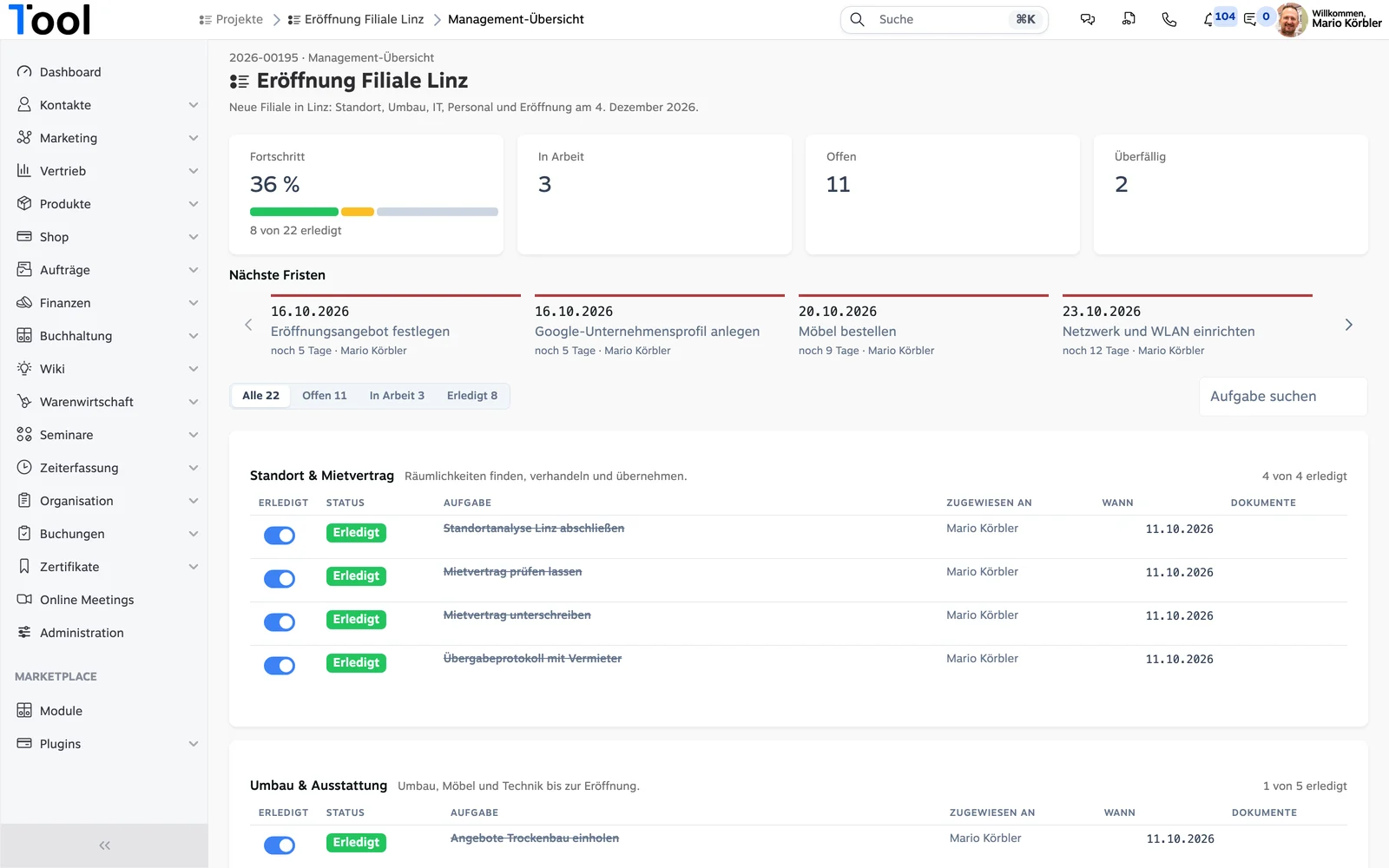
- Progress in percent. How many tasks are done, as a number and as a bar – green for done, yellow for in progress.
- In progress, Open, Overdue. Three tiles tell you at once how much is running, how much is still waiting and what is already past its deadline.
- Upcoming deadlines. The next deadlines as a timeline, with task, responsible person and "5 days left". Whatever is due soon is marked in red.
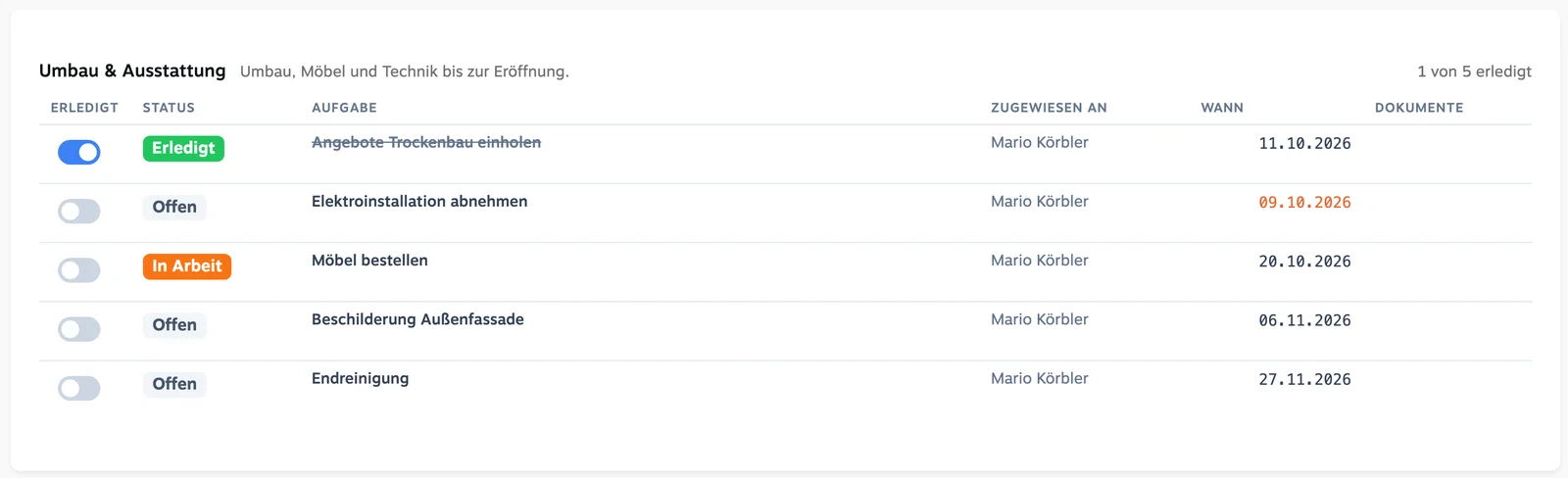
- All areas with their tasks. Each area of the project as its own table with status, assignee, date and "3 of 5 done".
- Supporting documents right on the task. Attached documents appear in the Documents column and open with one click – handy for acceptance reports, contracts or audit reports.
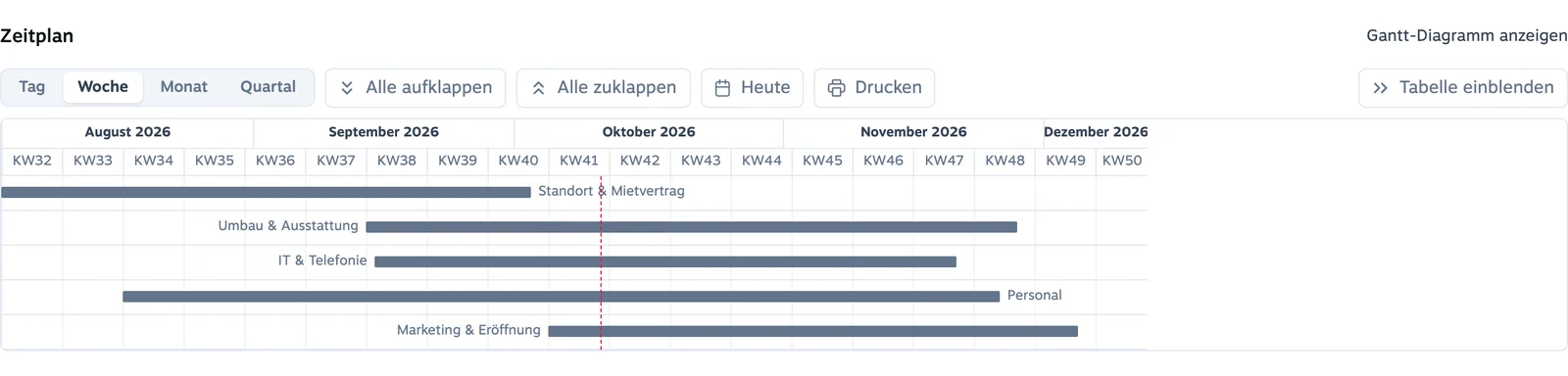
- Schedule. At the bottom, a Gantt chart shows when each area starts and ends.
How it works
The management overview needs no maintenance of its own. It reads the tasks you already create in the project:
- Areas = main tasks. Each main task in the project becomes an area, for example Fit-out, IT or Marketing. Its description appears next to the heading.
- Tasks = subtasks. You create the individual steps as subtasks – with Assigned to and Deadline.
- Complete with a switch. One click in the Done column – progress, tiles and deadlines recalculate immediately.
- Mark as in progress. Enter a value under Percent done for a task and it counts as In progress.
- Filter and search. With All, Open, In progress and Done or the search field, you find any task in seconds.
You open the overview in the project via the menu with Show management overview.
Who benefits from the management overview
- Management: The status of an undertaking in ten seconds – without asking around and without a status report.
- Project managers: What is overdue, what is due this week? The deadline timeline answers that before things get tight.
- Projects that require evidence: Whether certification, audit, funded project or a compliance plan such as NIS2 – the matching document hangs on every task, and the overview shows what is missing.
- Moves, openings, rollouts: Many people involved, many dates, one fixed go-live – this is exactly what the overview is built for.
Frequently asked questions
Does the management overview replace the existing project view?
No. The management overview is an additional page. You keep working in the project view as usual – the overview summarises the same tasks for management and project leads.
Do I need to restructure my projects?
No. The management overview uses the main tasks and subtasks you already have. If your tasks are already structured that way, the overview is ready immediately.
What is the difference from the Gantt chart?
The Gantt chart is for planning and moving dates. The management overview shows where things stand: progress, deadlines and open items. You still find the schedule as a Gantt chart at the bottom of the overview.
Are overdue tasks shown separately?
Yes. The Overdue tile counts them, and their date appears in red in the tables. Upcoming deadlines only shows open tasks from today onwards.
Try the management overview now
Already working with 1Tool? Open a project, click Show management overview in the menu – done.
Not using 1Tool yet? Try 1Tool for free or book a demo – we are happy to show you the management overview live.